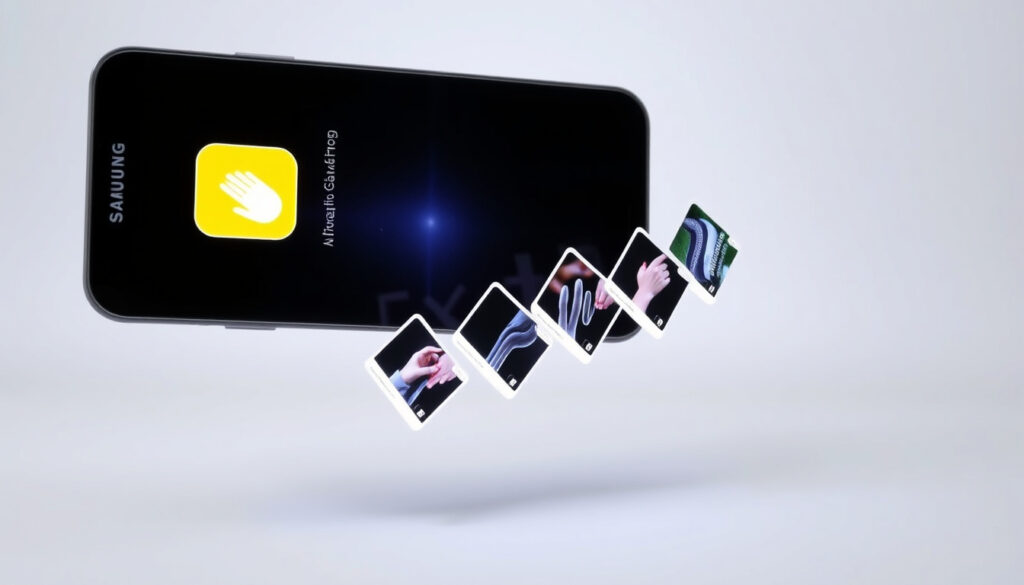
How to Take a Screenshot on Samsung: 6 Quick Methods
Samsung Galaxy phones offer far more ways to capture your screen than most people realize. The official method from Samsung Support is to press and hold the Power and Volume Down buttons together, but palm swipes and voice commands give you alternatives that can feel more natural. By the end of this guide, you’ll know exactly which shortcut works best for your model and situation.
Number of screenshot methods: 6 ·
Hardware button combination: Power + Volume Down ·
Gesture method: Palm swipe
Quick snapshot
- Press and hold Power + Volume Down simultaneously until screen flashes (Samsung Support)
- Palm swipe gesture can be enabled in Settings > Advanced features > Motions and gestures (Samsung Support)
- Voice command via Google Assistant: “Hey Google, take a screenshot” works if set up (YouTube tutorial)
- Screenshots are saved in the Gallery app, typically in a Screenshots album (YouTube demo)
- Whether the palm swipe gesture works with thick screen protectors (most do, but interference reported by some users)
- Exact number of screenshot methods across all Samsung models varies by One UI version and hardware
- Whether Google Assistant screenshot works in all regions (requires Google app and language support)
- 2012: Galaxy S3 introduces palm swipe gesture (Samsung Support)
- Samsung’s Circle to Search AI feature (Galaxy S24 series) adds intelligent screen capture suggestions (Samsung Support)
Six key facts about screenshot methods across Samsung Galaxy devices, one pattern: the hardware combo remains the universal fallback, but modern One UI versions have layered on gesture, voice, and quick-panel shortcuts.
| Fact | Value |
|---|---|
| First Galaxy model with palm swipe | Samsung Galaxy S3 (2012) |
| Current standard button combo | Press and hold Power + Volume Down for 1–2 seconds |
| Bixby screenshot command introduced | 2017 with Galaxy S8 and Bixby |
| Number of screenshot methods on One UI 6+ | 6 (buttons, palm swipe, Bixby, Google Assistant, quick panel, edge gesture) |
| Screenshot file format | PNG |
| Default save location | Internal storage > DCIM > Screenshots |
How do I take a screenshot on my Samsung phone?
Using hardware buttons
The most universal method works on every Galaxy phone and tablet. Press and hold the Power (Side) button and the Volume Down button simultaneously for 1–2 seconds until the screen flashes and you hear a shutter sound (Samsung Support). The volume down button is usually located above the power button on the right edge (YouTube guide). After capture, a toolbar appears at the bottom of the screen letting you view, edit, or share immediately (YouTube walkthrough).
Using the palm swipe gesture
Introduced with the Galaxy S3, the palm swipe method is exclusive to Samsung devices (Samsung Support). First, enable it: go to Settings > Advanced features > Motions and gestures and toggle on Palm swipe to capture. Then swipe the side of your hand across the screen from right to left (or left to right) — a brief flash confirms the capture. The gesture works even when the display is partially unresponsive, making it a useful backup when buttons stick.
Using Bixby voice command
If you have Bixby set up (Galaxy S8 and later), say “Hi Bixby, take a screenshot.” The feature works hands-free and can be activated even when the phone is locked, as long as Bixby voice wake-up is enabled. Google Assistant also supports the command “Hey Google, take a screenshot,” though it requires the Google app and may not be available in all regions (YouTube tutorial).
Voice commands turn your Galaxy phone into a hands-free capture tool — useful when your hands are wet, dirty, or holding something else. The trade-off is setup friction and occasional regional restrictions for Google Assistant.
The implication: with three distinct input methods (buttons, gesture, voice), Samsung ensures a fallback for every scenario, but only the hardware combo requires zero setup.
What are the three ways to take a screenshot on Samsung?
Hardware button method
As described above, Power + Volume Down is the fallback that works on every Galaxy device — no setup required. It’s the method recommended by government resources like the eSafety Commissioner (Australian Government) for collecting evidence.
Palm swipe gesture
A Samsung-exclusive shortcut that doesn’t require pressing any physical buttons. It’s particularly useful on newer models where the power button doubles as the Bixby key or fingerprint sensor. Enable it in one trip to Settings, and you’ll never fumble for buttons again.
Voice assistant method
Both Bixby and Google Assistant respond to “take a screenshot.” Bixby is built into Samsung devices; Google Assistant needs installation but may offer more consistent performance. Either way, they provide a completely button-free experience.
The pattern: each method trades convenience for reliability. Buttons always work, voice needs setup, and gestures require practice. The best method depends on your immediate context.
Does Samsung have a shortcut for screenshots?
Palm swipe shortcut
Already covered — it’s a dedicated gesture shortcut baked into One UI.
One UI quick panel toggle
Swipe down twice from the top of the screen to open the full Quick Panel. If you don’t see a “Screen capture” button, tap the edit icon (pencil or plus) and drag the button into your active tiles (YouTube demo). After adding it, one tap captures the screen without any button pressing.
Third-party gesture apps
Apps like NiceShot or One Hand Operation+ (Samsung’s own Good Lock module) let you assign a swipe gesture along the edge of the screen to take a screenshot. For example, a swipe up from the lower left corner can trigger a capture with no hardware interaction. These tools are popular among power users who dislike the default button placement.
How to take a screenshot on Samsung without power button or volume button?
Using palm swipe gesture
Since palm swipe requires only a hand motion across the screen, it works perfectly when the power button is broken or inaccessible. Enable it once and it will always be available.
Using Bixby or Google Assistant
Voice commands require no physical buttons at all. Just wake your assistant and speak. This is the go-to method for users with broken hardware buttons.
Using the quick panel button
The quick panel “Screen capture” icon is always one swipe away and does not need any button presses. Add it permanently for immediate access.
Using edge handle gestures (One Hand Operation+)
Good Lock’s One Hand Operation+ module allows you to assign a side swipe to capture the screen. No buttons, no voice, just a thumb movement along the screen edge.
What is the easiest way to take a screenshot on a Samsung?
Palm swipe vs hardware buttons vs voice
Palm swipe is the fastest for single-handed use because you don’t have to aim at two buttons simultaneously. Hardware buttons are the most reliable — they work even when the touchscreen is frozen. Voice commands are the ultimate hands-free option but require setup and a quiet environment.
Quick panel button convenience
If you’re already used to One UI’s interface, the quick panel button is one tap away. It’s the easiest for users who frequently use the notification shade.
Recommended for different use cases
- One-handed quick capture: palm swipe
- Frozen screen or broken buttons: hardware buttons (if possible) or assistant voice command
- Hands occupied: Bixby or Google Assistant
- Consistency across all apps: quick panel button
The “easiest” method is the one you set up ahead of time. If you enable palm swipe and place the quick panel button now, you’ll never again fumble with button combinations.
The catch: no single method dominates all contexts, but proactive setup eliminates the guesswork.
Step-by-step: Take a screenshot using the hardware button method
- Navigate to the screen you want to capture.
- Locate the Power button (right edge) and Volume Down button (just above it).
- Press and hold both buttons simultaneously for 1–2 seconds.
- Wait for the screen to flash and the shutter sound to play.
- Use the toolbar that appears to view, edit, or share the screenshot.
- Find the image later in the Gallery > Screenshots album.
This method remains the universal fallback, so memorizing it prepares you for any Galaxy device.
Clarity: what we know for sure and what remains fuzzy
Confirmed facts
- Press and hold Power + Volume Down works on all modern Galaxy phones (S series, Note, A series, tablets) (Samsung Support)
- Palm swipe gesture is enabled in Settings > Advanced features > Motions and gestures (Samsung Support)
- Scrolling screenshot is available on One UI 2.0 and later (YouTube tutorial)
- Screenshots are saved as PNG in DCIM/Screenshots folder (YouTube demo)
- Quick Panel “Screen capture” button can be added via edit mode (YouTube demo)
What’s unclear
- Whether palm swipe works with all screen protectors (most do, but thick protectors may interfere)
- Exact number of methods across all Samsung models varies by One UI version and hardware
- Google Assistant screenshot availability depends on region and language support
- Whether Circle to Search replaces traditional screenshot flows completely in future One UI versions
What this means: the confirmed methods are robust, but user experience may vary by device revision and software locale.
What users are saying
Press and hold the power key and the volume down key simultaneously until the screen flashes.
Samsung Support (official guidance)
I use one hand operation and assist down swipe from left screen to take a screenshot, much better than three fingers swipe down.
Reddit user on r/samsung
Press power and volume down buttons, palm swipe, Bixby, Google Assistant, quick panel, and edge gestures.
Press and hold the Power button and the Volume down button at the same time for 1 to 2 seconds.
For anyone with a Samsung Galaxy device, the choice is clear: enable palm swipe and add the quick panel button now, so you can capture anything immediately. If you’re using an older model without those features, the hardware button combo remains your most reliable tool — but it’s worth checking for a One UI update that may unlock scrolling screenshots and voice commands.
Frequently asked questions
Where do screenshots save on a Samsung phone?
All screenshots are stored in the Gallery app under the album “Screenshots” (path: Internal storage > DCIM > Screenshots). After capture, you can also find them in the notification panel until dismissed.
Can I take a scrolling screenshot on a Samsung tablet?
Yes. On any Samsung device running One UI 2.0 or later (including tablets), after taking a normal screenshot, tap the “Scroll capture” button in the toolbar. The screen will scroll automatically to capture the full page. This works in browsers, settings, and many other apps.
Why is my Samsung screenshot not working?
Common causes: the power button is too slow (press and hold, don’t just tap), a screen protector blocks the palm gesture, or the quick panel button hasn’t been added to the shade. If the button combo fails, try a soft reboot by holding Power + Volume Down for 10 seconds.
How to edit a screenshot immediately after taking it?
Right after the capture, a toolbar appears at the bottom with options to draw, crop, or copy text. Tap the “Markup” icon (pen) to add annotations, or the “T” icon to extract text from the screenshot. These edits are saved as a new file.
Can I take a screenshot using Samsung DeX?
On DeX mode, you can take a screenshot using the keyboard shortcut Ctrl + S (if you have a physical keyboard) or via the on-screen toolbar in the DeX interface. The screenshot will be saved on the phone.
How to take a screenshot without touching the screen?
Use Bixby or Google Assistant voice commands. Say “Hi Bixby, take a screenshot” or “Hey Google, take a screenshot” after setting up the assistant. This works even when the phone is locked, as long as voice wake-up is enabled.
What is the difference between screenshot and screen recording on Samsung?
A screenshot captures a single static image of the current screen. Screen recording (available in One UI via the quick panel toggle) captures video of all on-screen activity, including microphone audio if enabled. The file size and storage location also differ: recordings go to Movies, screenshots to Screenshots.
These answers cover the most common follow-up questions after reading the methods above.
Related reading
More related posts
 Pork Shoulder Steak Recipes: Quick Pan, Oven Braise, Air Fryer
 State Pension Increase 2025: Full Irish Rates & 2026 Changes
 Cast of The Survivors: Netflix Actors & Characters
 Pub Food Near Me: Best Irish Pub Grub, Etiquette & Spots
 David Harbour Movies and TV Shows – Complete Filmography List
 Cast of Harry Wild – Full List by Season and Role
 Harry and Meghan Latest – Queen’s ‘Unwise’ Oprah Remark Resurfaces
 Eddie Howe: Illness, Salary, Coaching Career & Family Facts